|
Adjusting Monitor
Gamma for Optimum Image Viewing
|
| |
Send comments to me at . |
| Grayscale
Adjustments |
The key to seeing the maximum
detail in astronomical images is to have your monitor adjusted so that it
displays all the possible shades of gray in a balanced way.
The image at right shows various shades of gray, ranging from pure
black to pure white. There are small tick marks at the bottom, showing the
point where each shade begins and ends.
Adjust your monitor's brightness and contrast controls until you can
see every shade of gray between the black and white extremes.
|

|
|
|
|
| Here
is a version of the same image against a black background. The image
border is a neutral 50% gray. The smaller divisions represent 5% changes
in black level, while the squares are 10% differences.
From left to right, the brightness values are:
This version was requested because it provides
the same black background as most astronomical images. |
|
| Sample
Image |
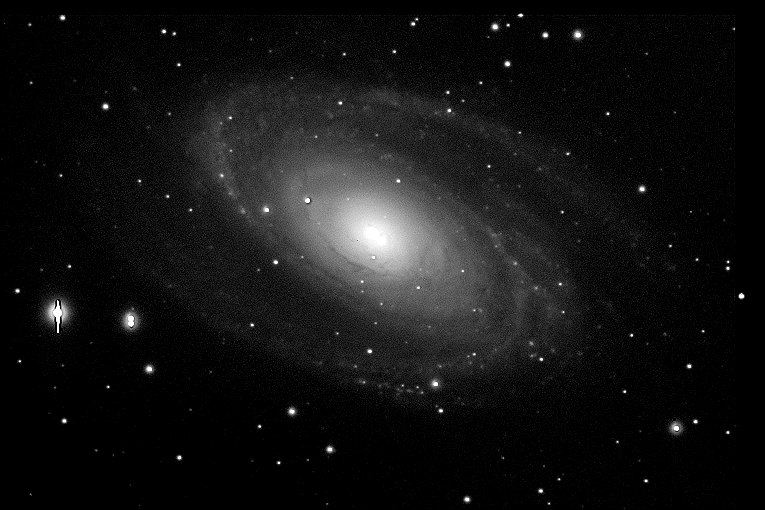
Here is a test image that has a
full range of grays in it, including lots of subtle details. It provides a
good test for your adjustments. Compare how it looks before, and after,
you have made brightness and contrast adjustments to your monitor.
Click on the image to see a larger version. |
|
|
|
|